
Search results for: “recovery”

  • Android Recovery Mode Options Explained Well

    Android Recovery Mode Options Explained Well

    What are Stock, Custom Android Recovery Mode Menu Options?

    Android System Recovery Mode Options can be used to fix the system without accessing Operating System. This options are so useful if you wanted to work on Android development. Recovery mode options changes from manufacturer to manufacturer. Common recovery mode menu options in stock as well as custom recoveries in android device are as follows:

    Stock Custom Android Recovery Mode Options Explained in Details
    Android Recovery Mode Options
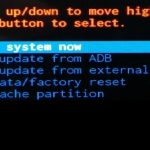
    1. reboot system now: This mode is used to restart the device in Normal Mode. This options is available into every stock as well as custom recovery.
    2. apply update from ADB: ADB which is called as Android Debug Bridge. Android Debug Bridge is used to connect device to Computer. With the help of ADB option device can be controlled right from Computer using commands. This option is used by developers to test different applications and to fix bugs present in the applications. Packages stored in Computer can be install on android device with the help of ADB bridge.
    3. apply update from external storage: Many times while flashing custom ROMs and Recoveries it is inconvenient to use ADB bridge. To tackle this problem this is another android system recovery mode option which is used to flash Custom ROMs, packages and Recoveries. Using “Apply Update from external storage” option user can flash different ROMs and recoveries from external storage. In that case, files which are needed to flash are stored on external storage. Save the files which needed to flash on external storage and boot the device in recovery mode. Select the option “Apply Update from external storage” and select the file which have to flash. And wait until process completed and reboot the device from recovery option. Especially if you are using custom recovery rather than flash one, you’ll find this option very helpful if you want to try new ROMs every now and then.
    4. wipe data/factory reset: Wipe data option is used to reset the device. If you are facing lag in your device and feeling lot of bugs in your system, then you can fix it by selecting this option. This will delete all stored data in device. This option can be accessed through device’s setting option. If your device is unable to boot or if your device is locked out, then it then it can be fix by “Wipe Data/Factory Reset” option.
    5. wipe cache partition: This is one of the best Stock and Custom Android Recovery Mode Options which will make your device faster. Wipe cache partition option is used to clear temporary files. If your device is not working properly then it can be fixed using Wipe cache partition option.

    Additional Android Recovery Mode Options

    Here are some additional Android recovery menu options explained that you may find in Custom recoveries.

    1. Fastboot mode: Fastboot mode allow user to flash firmware directly from the PC. Custom Recoveries comes up with fastboot mode option in the recovery.
    2. backup and restore: Using Backup and Restore option user can backup current ROM on which device is running. When you want to Backup all of device data then you can select this option. It will backup all data on SD CARD in .img file. And using Restore option you can restore your saved data in that .img file.
    3. wipe dalvik cache: Dalvik is a java based VM (Virtual Machine) which is the base of your running apps. In order to make access times faster i. e. to open and operate them faster, the dalvikcache is used instead JIT (Just In Time) compiler.
      Wiping dalvik cache will also make your device faster but unlike wipe cache partition option, you won’t have to setup your apps again.

    Its better to wipe dalvik cache once in a while.

    Do you know more options? Comment below.

  • How To Enter  Recovery Mode in Android? Boot to recovery?

    How To Enter Recovery Mode in Android? Boot to recovery?

    What is Recovery Mode in Android Phone?

    Recovery Mode is used to fix the system issues without interrupting Operating System. Every android system comes up with in-built recovery mode. Learning how to Enter Recovery Mode of the android system is more important if you are going to work on android development. To Boot into Recovery Mode of the android system you must know some little things about how recovery works.

    get into android system recovery mode
    Enter into HTC Android Recovery Mode

    How to Enter  Recovery Mode in Android?

    Every android device is nothing but a bunch of a hardware on which a sweet layer of Operating System is filled. Operating system works according to the support of Hardware utilized in the system. There are some switches placed on the hardware which works to trigger the functionality of system. For Example: Volume Rocker Buttons, Power ON/OFF Button, Camera Key, etc. When user clicks this switch it works like an interrupt signal to the system so that system can work on that function immediately. Means when you click power On/Off button system goes into Switched On/Off mode without thinking anything.

    This way in android devices those switches comes with multi-functionality pins means power ON/OFF button can be used to switch ON/OFF device and also can be used to boot device into SAFE MODE and it can be also used to take screenshot of the screen. User can boot up device into SAFE MODE by holding power ON/OFF button for a while. Same way Recovery mode works in the android system. When you press some sort of keys combination, system immediately Enter Recovery mode instead of Operating System.

    For most of the recent Android phones, tablets, devices press, Volume Up, Volume Down and Power Key at once to boot into recovery mode while device is powered off.

    This is the beauty of the android device. Those keys combination decided by the manufacturer of the device. For example, some Samsung devices Enter Recovery mode when Power button and Volume down Button is pressed for a specific time whereas Motorola devices can be boot up in Recovery Mode by pressing Power Button and Volume Up button for a specific time. This keys combination is decided while manufacturing device. So, it changes according to device and model number of device.

    Why phone’s touch touch screen is not working in recovery mode?

    You must know that recovery mode is different from the operating system. There is no connection between system Recovery Mode and Operating System. When you are in the Recovery mode you are on the different track. Most of Recovery mode doesn’t support touch screen functionality to navigate menu. There is a reason for that thing it is more convenient to use Recovery mode with Hardware keys than touch screen capability. It reduces the chance of accidental touch on the screen. Recovery mode is more sensitive to command. Some wrong commands and operation can make your device brick. Today there are many custom recoveries which comes with touch functionality. Hats off to developers!!

    enter into recovery mode
    Recovery Mode Screen

    Some key combinations to put phone in recovery mode

    1. Volume Up Button + Power Button
    2. Volume Down Button + Power Button
    3. Volume Down Button + Power Button + Home Key (Old Samsung devices)

    • Keep these keys in pressed mode for a while until device logo boot into Recovery Mode.
    • Now, you can see recovery mode on the screen.

    This way you can access Recovery of the Android device.

    Stuck in recovery mode android? Exit

    If you are stuck in recovery mode then you can exit it by simply turning off the device via power button or removing the battery. Next time you boot your device, it will boot the regular OS installed.

  • What is Android Recovery Mode Used For? What is it?

    What is Android Recovery Mode Used For? What is it?

    What is Android System Recovery Mode in Android Phones? & What does it do?

    Recovery, it is one of the important part of android system. Things like flashing the operating system and drivers are not possible without recovery. You cannot flash or install bootable files on your android system without getting into Recovery mode. Recovery is one of bootable partition of the system memory which separates operating system from boot codes. Boot codes are those codes which controls the boot menu of the system. Even for rooting your device, you may have to enter into recovery mode.

    Simplest meaning of android recovery mode is “It is one of the feature of Android System where user can access various features like fastboot mode, wipe data/cache mode, factory reset device, system partition, install android packages without accessing the system’s operating system.”

    Android Recovery Mode Use, How to Enter, Purpose, Stock Recovery, Custom Recovery
    Android Recovery Mode

    What is Android Recovery Mode Used For? What’s the main function?

    Recovery is one of the integral part of system’s operating system. It helps users to repair operating system’s installations and also used to install Official Operating system updates given by OEM companies.

    Most important feature and function of Android System Recovery Mode is to fix the system without touching the Operating system.

    What is the use of Recovery mode in android system? What does it do?

    Few years before back, mobile handsets were so simple to handle. Use of those devices was only limited to the voice calls and text messaging. On such devices it was very difficult to modify, update and delete the system software and firmware of the system. Today we are using mobile handsets with increased capability in term of performance, feature and lot of new things. But with that improvements it also come with increased complexity in the architecture and manufacturing of the device.

    Android Operating System needs repairing functions like fastboot mode, wipe data mode, wipe cache mode which helps to tweak and repair software issues of the system. User can also Backup and Restore the system from recovery mode of the android. We can access all those modes from the recovery mode of the android system. User can also find out important information of the device in that mode.
    Android is famous for its openness. Recovery is the best example of this. We can customize those recoveries according to our need.

    How to go into Android Phone, Tablet or any Device Recovery Mode?

    get into android system recovery mode
    Enter into HTC Android Recovery Mode

    Every android system comes with accessible bootable partition where important source codes are placed which is Recovery Mode. Android system can be boot up into recovery mode by using two ways which are as follows: –

    1. User can Enter Into Android System Recovery Mode with the help of keys/buttons which are there on android handset. By pressing specific keys combination android boots up into recovery mode.
      For Example: – In some of Motorola Devices when you press Power Button + Volume Up button for a 20-30 seconds you can enter into recovery mode of android. Note that every device comes with different keys combinations to access recovery of android system.
    2. Another method to access recovery of android by using different command lines provided by companies. USB debugging feature must be enable to access recovery mode with the help of command lines.

     What is Stock and Custom Android Recovery?

    There are two types of Recoveries we can use on the Android OS.
    1) Stock Recovery (comes in-built in most of the devices)
    2) Custom Recovery (Customizable Recovery)

    The stock recovery comes in-built in the android device. It has limited number of features given by manufacturer where as Custom recoveries like CWM (Clock Work Mode), TWRP Mode are customizable. Custom Recovery use to flash different custom rom on the Android device.

    Before experimenting with any other custom recoveries, make sure you have image of stock recovery of your device.

    What is the use of Custom Android Recovery?

    • The main purpose of Custom Recovery is to format all the user data and files present in the system.
    • Custom recovery is also useful to install official operating system update.
    • User can upgrade and downgrade the operating system version with the help of Custom Recovery.
    • Backup and restore functions can be used from the recovery mode of the android.
    • Recovery can be used to install apk packages on android which are not signed by official sources. User can install unsigned application packages with the help of recovery mode on android.
    • User can do partition of the internal memory with the help of recovery.

  • Install Magisk Manager and Root Android Phone & Tablet

    Install Magisk Manager and Root Android Phone & Tablet

    In last thread, we talked about Magisk a System-less root. Today, we are going to talk about different ways to install Magisk Manager and Root Android Phone & tablet. One of the cleanest ways to install Magisk Manager is by using TWRP Recovery. When we flash new root binaries on the android device, old root binaries need to be removed. It helps to avoid malfunctioning and hard bricking of android phone. Flashing files on android device using TWRP recovery makes sure to replace the old binaries with the new one. That’s why flashing through recovery like TWRP always preferred to install Magisk Manager.

    Install Magisk Manager and Root Android Phone & tablet

    Follow following steps to Install Magisk Manager and Root Android Phone & tablet:

    STEP 1: Unlock bootloader of Android device

    Unlocking bootloader is one of the basic step required before experimenting with your android smartphone. It’s like unlocking the door of multiple possibilities. See this thread to know more about What is exactly Android Bootloader? and How to unlock Bootloader of any Android device?

    STEP 2: Install Custom Recovery like TWRP.

    After unlocking the bootloader of Android device, we need to flash the custom recovery on the device. Learn more about Android recovery: What is Android Recovery? The custom recovery like TWRP helps to flash .zip files as well as binary files on the android partition.

    Follow the following steps to install TWRP recovery on the android device:

    1. First Unlock bootloader of the android device on which you want to install TWRP recovery.
    2. Put your phone into Fastboot Mode or in Bootloader mode. (varies from device to device)
    3. Download the ADB files of your Android device.
    4. After downloading ADB files, open ADB shell using command prompt on Windows OS or Terminal on MAC OS. Remember to open the command window in a location where you placed ADB files.
      Install Magisk Manager and Root Android Phone & tablet
    5. Download Official TWRP Recovery for your Android device.
    6. Use the following command to flash the .img file of TWRP recovery.
      • fastboot flash recovery <recovery file name>.img

    Detail guide flash TWRP on your Android Device.

    STEP 3: Download the Magisk Manager ZIP file

    After completing the installation of TWRP, next step is to download supported Magisk ZIP file. This ZIP file will install the Magisk Framework on your phone. This framework will give your device a systemless root functionality. Get Magisk Manager for your Android device from here.

    We strongly recommend you to always use only supported files to root your android device.

    STEP 4: Flash Magisk ZIP in TWRP

    Reboot your Android device into TWRP recovery mode. Then TAP the install button from the main menu. Navigate to the folder where Magisk ZIP is downloaded. Select that ZIP file and just swipe the slider at bottom of the screen to install Magisk. After completion of installation just hit button Reboot.

    twrp magisk Install Magisk Manager and Root Android Phone & tablet

    STEP 5: Install Magisk Manager APK

    After successful installation of the Magisk framework, we need to install the Magisk Manager application which will access that framework. This application is no longer available on Play Store. so, to install it you need to enable “Unknown Sources” from setting menu. Download Latest Magisk Manager application and install it.

    STEP 6: Verify Root and SafetyNet status

    Open Magisk Manager app. Now, you can see a message towards the top of the screen that says “MAGISKSU (topjohnwu)” with a green checkmark next to it. That shows your phone is now rooted. If your seeing red mark on it then follow above steps properly.

    Magisk front page Install Magisk Manager and Root Android Phone & tablet

    This way you can install Magisk Manager and Root Android Phone & Tablet. For Magisk Modules stay tuned to elitcan.com and stay updated.

  • How To Flash Zip File From PC: Desktop Flasher

    How To Flash Zip File From PC: Desktop Flasher

    A man who never experienced flashing process in his android lifetime then he is missing beauty of android. From beginner android developer to experienced developer flashing is an essential process. No one can bypass flashing stage in android. It is mandatory to everyone nothing matters what purpose it is. It can be a root thing, custom ROM or hardcore android development. You can’t avoid flashing. Many time while installing or flashing any files on android system user needed to transfer that file from computer to an internal or external SD card. Today, we are giving you a simple way to flash zip files from PC to Android.

    Easy stuff…!! But Size matters…!!

    For example, Most of the custom ROMs like Cyanogen, Resurrection Remix, PAC-Man, AOSP,etc. comes up with average size of 500 MB. Then it is not a big problem. Sometimes OEM like MIUI gives system update of  1 GB or more than it. Then it gets irritated to transfer those files from computer to external storage. In such situation question arise Can we flash .zip files directly from computer? Is there any a simple way to flash zip files from PC to Android?

    Here is the answer for your question How to flash .zip file from a computer?
    This method saves time of flashing Custom MODs, kernels, gapps and ROMs. To use this method device must come up with some requirement such as custom recovery must be installed on your device. Learn how to flash custom recovery on android device.

    Old Method to flash .zip files:

    1. Install custom recovery on android device.
    2. Move files needed to flash on internal or external SD card.
    3. Then files can be flash on android device.
      This method consumes lot of time and it requires lot of free memory on internal or external SD card to process further.

    New Method:
    Today we are coming with a new method to flash .zip files. In this method, Desktop Flasher application is used. It is a small application which allows user to flash .zip files from computer to android device.

    Note: Now directly flash all your zip files from desktop to Android device on one click. Just needed to download and install the Desktop Flasher on PC which is running on windows operating system.

    Download Desktop Flasher.

    Thanks to elit filmaker
    Things to do before using that application:

    1. Install the latest USB drivers of device on PC.
    2. Enable USB debugging mode on device.

    How to use Desktop Flasher:

    desktop flasher app to flash file

    1. Open
    2. Download .zip file which you want to install
      way to flash zip files
    3. Drag and drop .zip file on the application to flash it on android device
    4. It will prompt to open custom recoveries like CWM or TWRP on device
    5. After confirmation it will start the flash process

    Just some clicks and your .zip file is flashed. Best way to flash zip files from PC to Android.

  • How To Get Google Assistant On Any Android Phone

    How To Get Google Assistant On Any Android Phone


    get google assistant on android device
    Get Google Assistant on your android device

    The day is not long when everyone will have their own assistant on the tip of their fingerprint. For Cortana, Siri and Android Assistant it’s just a start. Can you think when virtual assistant idea got picked up ? If no then we have answer for you.

    Robot word is also derived from scene from Karel Čapek’s 1920 play. Like that virtual assistant idea is also inspired from some movie and game scenes. Every one is aware of HALO game series. In that game there is an one character named as “CORTANA”. She is there as an AI Assistant. I am pretty sure that Microsoft named there assistant “CORTANA” from that background. And another scenario is from Marvel movies. Iron man movie also has an fully blown assistant named as J.A.R.V.I.S.. He can do all things.

    From above two scenario virtual assistant concept got pick up. And now three major companies have released there virtual assistant for the user. Here, we are going to discuss about Google powered virtual assistant named as Google Assistant.


    Eagerness about new features and trends in technology makes us to use it as soon as it releases. That’s make you tech geek.


    In May 2016 google published Android 7.0 preview. In that preview google introduced us to their virtual assistant. Everyone is waiting to get hands on that assistant. As Google Assistant is only available to new Pixel devices. It is not possible to everyone to buy Pixel device for Google Assistant. To use that feature it require some modification in system to get that feature. Today, we are going to give you a simple method. So that you can use google assistant on your android device which is running on android marshmallow and higher versions.

    There are three easy methods which can be used to get Google Assistant on android device which is running on Nougat:


    Method 1:

    Requirements: Things required to do for Google Assistant.

    Procedure:

        1. Download and install the above BuildProp Editor application on your android device from play store.
        2. Open that application and grant root access to that app.
        3. After granting root access. Open the app and click on the edit option shown on upper right bar.
        4. After clicking it on you can see Text editor on the screen.
        5. As google assistant is only available to Pixel devices. Build property of device needed to change. Replace the exciting code in the text editor with new code. And click on save.
        6. Then add the following code in that text editor and save it.
        7. Now, reboot the device and after rebooting you can see that by holding home button Google Assistant gets displayed.


           Method 2:

          Don’t want to mess with codes. Getting confused then follow the following step to get Google Assistant on android device.

          Requirement: 

          There are different applications on Play Store which helps to enable Google Assistant on android phone. Those application requires root access. So, that they can make change in build property.

          Procedure:

            1. Install the Google Assistant Enabler app like Get Assistant from Play Store.
            2. After installing this application. Open the application and follow the onscreen procedure.
            3. This procedure will lead you to the activation of Google Assistant on android device running on marshmallow and Nougat.
            4. Enjoy Google Assistant by holding home button on your smartphone.


          Method 3:

          Another method to enable Google Assistant is flashing. For some Nougat running android devices developers has released some script which can be used to modify system. These modifications allow user to use Google Assistant by holding home button. Those script needed to flash on your android device. This method doesn’t require root access.
          Requirement:

          • Custom Recovery Access
          • Unlocked Boot-loader device.
          • .zip file which contains build.prop script.
          • Latest Google Application.
            Note: Every device has different .zip file. You can find out it on device developer forum.

          Procedure:

          1. Download the respected .zip file from developer forum like XDA, etc.
          2. Boot device into recovery mode.
          3. Select the install option and choose respected zip file.
          4. After flashing it clear the Dalvik cache from the recovery.
          5. Click on reboot system option. It will take some time to boot up device.
          6. Hold the middle home button and enjoy Google Assistant on your android device.


          Didn’t got an Android 7 update but still want to use Google Assistant. Then here is a way to enable Google Assistant on Marshmallow device.

          How to get Google Assistant on android device which is running on marshmallow?

          Requirement:

          Procedure:

          1. Download and install Xposed and N-ify Application.
          2. Enable the N-ify module from Xposed framework application.
          3. Follow the screen command and activate the Google Assistant from N-ify application.

          From above all methods you can get Google Assistant on android device running on Marshmallow and Nougat.
          Enjoy the pixel features on your android device and use Google Assistant to increase your productivity.

  • Tools needed to build Custom ROM for Android

    Tools needed to build Custom ROM for Android

    Android ROM development Tools Introduction

    If you search ‘build android ROM‘ then, number of results shown up. Is this so easy to build ROM for Android device? It depends on number of modifications you wanted to do. But, believe me. Without proper knowledge you can’t build perfect ROM for Android device. You must know all the things require to build Custom ROM for android device. From basic to advance, this shows how matured you are in Android development.

    Human beings are using tools from medieval era. From the ancient times tools are referred as a physical item. Due to advancement in human life, definition of tool is changed. Tool is an item which helps human for completion of work or to achieve goals. For completion of every work we require tool. Our hands, brain, body parts are also great tools which helps us to complete our goal and work. Same philosophy is followed in Software and Hardware industry. Now tools are not only limited as a physical item. Software required to develop different things are also categorized as a tool. For example, to create movie we require software like Movie Maker. Those software are nothing but a tool.

    In this guide, I am going to introduce you to different tools required to build Custom ROM for Android.

    Essential tools required to build Custom ROM for android:

    • JAVA JDK(Java SE Development Kit)
      Java is the essential part of the Android Operating System. For proper android development you must learn Java. It will help you to understand android development properly. Your Computer must know commands of java libraries. You can install those SE binaries by using JAVA JDK kit.
      Download Java JDK.
      openjdk
      Why we needed to install Java while developing app or ROM for android?
      For Android development system require multiple java applications to run. This java application requires JDK Kit to run. That’s why JDK Kit must be installed on your PC.
    • CYGWIN
      Android is Linux based Operating system. It is important to develop android from Linux based operating system. But if you want to work from Microsoft’s Windows Operating system then you need third-party software like Cygwin. It helps user to build Unix-like environment on Windows Operating System. It provides 
      native integration of Windows-based system resources with data of the Unix-like environment. It provides user functionality similar to a Linux on Windows OS.
      Download CYGWIN
    • META-INF
      META-INF needed to make flashable zip files. Using it you can club different meta and APK files in a single .zip file. Using META-INF you can flash .zip file from recovery mode.
    • Android Kitchen
      Android Kitchen software helps to build Custom ROM for android devices. With the help of Android Kitchen you can port different ROM for different android devices. You can customize the ROM according to your need.
      Download Android Kitchen UOT Kitchen or ROM Kitchen.
      Household-Kitchen-icon
      You can also try different Kitchen to cook different types of ROMs.

      Download Notepad++ and Android device drivers.

    • Notepad ++
      It is source code editor software. It supports different languages. Recommended for Windows users.
      Notepad_Plus_Plus_Logo
    • Device Drivers
      Install drivers of the device on your system. It helps system to interact with the device.
    • ADB Driver
      Install ADB driver on your system.
      ADB known as Android Debug Bridge is a command-line utility included with Google’s Android SDK. It helps system to control your device over USB.
     These is the introduction to some of the essential tools required to start developing Custom ROMs for Android devices.
  • SuperSU for Android instant Review with features

    SuperSU for Android instant Review with features

    What is SuperSU for Android?

    In last two guides, we discussed about Root. You can learn more about root from there. What To Do After Rooting Android Phones 2016 and Android Rooting For Beginners?. In this post we are going towards another app review. App which i am going to told you is most important app for rooted users. You can’t imagine rooted phone without SuperSU for Android application. Today, I am going to told you about “SuperSU”.

    SuperSU for Android

    Why SuperSU for Android is so important?

    After rooting your android device you must use that root permission so wisely. It can damage your phone too. So, It is important to manage the applications who are using Root access. There are lot of applications who can break device’s security using root access. It can harm your Android device. It can brick your device. So, How to prevent rooted device from bricking? We require something which can manage those root permission. Fortunately, there is one application which helps user to control Root permission. Thanks to Chainfire Developers. This app is called as ‘SuperSU’.

    SuperSU application helps user to control root permissions. When any application wants root permission then SuperSu application shows pop-up notification about it. You can grant or deny root permissions to respected application. SuperSU app monitors all applications who are using root privileges. With the help of SuperSU you can anytime grant or deny root permissions. Most important feature of this application is that it is free for everyone. And it has active community which always works on it to make it better and better everyday. Don’t worry about root permissions install SuperSU for Android device right now.


    Features of SuperSU:

    • It keeps track of applications which has granted root permissions.
    • When you run SuperSU for next time it helps user to automatically grant those permissions again.
    • Keeps complete log of applications which granted root permission.
    • You can monitor how frequently those applications use root permissions.
    • SuperSU can temporarily unroot your device.
    • Helps to troubleshoot issues if your phone is stuck in boot loops.
    • Also works in recovery mode.
    • You can also lock SuperSU application using PIN code. This requires you to buy pro version of application. It will cost you nearly $3.
    • OTA survival mode.
    • Full color-coded command content logging. Different colors for input/output/error.
    • Per-app logging configuration
    • Per-app user override
    • Per-app notification configuration
    • Deep process detection
    • Works when Android isn’t properly booted
    • Works in Ghost Mode
    • Convert to /system app
    • Complete unroot
    • Support to CyanogenMod ROMs
    • Personalization options:
      • Icon can be changed including invisible option
      • Different Themes

    Review of SuperSU:

    There is no doubt about usefulness of SuperSU. Is it really worth? In straight word yeah it is worth to use SuperSU application on rooted device. User interference of application is simple and easy to understand. Most important thing is you can download and install it without any cost. It is free for all. If you want some extra features then i suggest you to go for PRO version of SuperSU. Download link is given below. Grant or Delay function is quiet easy. In addition with permission control, SuperSU also keeps an extensive log of all root permissions. You can also remove root functions temporarily on one click. PRO version helps device to quickly re-rooted after an OTA (Over-The-Air) update. Overall SuperSU for Android is great application.

    Download SuperSU free version

    Download SuperSU PRO

    Developer Chainfire

  • Guide for Beginner Titanium Backup Application

    Guide for Beginner Titanium Backup Application

    Titanium Backup Complete Introduction

    Backup is not the new thing for us. We are using backup feature from our Nokia Era. Nowadays backup is not the only thing which is important. Device must be able to restore data. Backup helps device to recover from a system failure. So, you must backup your important data.  There are lot of methods to backup data from your phone, tablet device. You can take backup using Third-Party application. Titanium Backup is one of the top backup application available in the market. It require root access to work. In this guide, we are going to introduce you with Titanium Backup Application.

    taitanium backup review
    Introduction, Feature and Review of Titanium Backup

    Why every Android user must try Titanium backup Application?

    In Android development, We need to backup data every time. It helps us to flash ROM or Recovery on Android device safely. It reduces the bricking possibility of device. There are different ways to take backup on Android phone.

    1. From Setting Menu
    2. Using Cloud Service
    3. From Recovery Mode
    4. Using Third-Party Applications

      From above all methods, best way to take backup is to use Third-Party Applications. User can backup and restore data easily using Third-Party applications. Titanium Backup Application comes under this category.

    What is Titanium Backup? How to use Titanium Backup on any android phone and tablet device?

    Titanium backup is one of the most famous backup application available in the market. Using this application you can backup different types of data. Want to backup game data on android device. Using Titanium backup application user can backup application and game data on the device. This makes you to back up your progress in the game as well. This application is able to restore all your backup data on the device. This features makes Titanium Backup application unique.

    Important things to remember,

    Titanium Backup require root access to run on Android device.

    After flashing ROM, Never attempt to restore system apps or data of another ROM. It will cause serious crashes on the device.


    Top 9 things which can be done using Titanium Backup Android Application:

    What is the use of Titanium Backup Application?

    1. Perform Complete backup of device:
    2. Create a recovery backup (.zip file):
    3. Scheduled backup:
    4. Restoring from backup:
    5. Managing bloatware: 
    6. Move backup files from Phone to PC or PC to Phone:
    7. Move applications to the SD card:
    8. Cloud backup feature:
    9. Send backup files to Google Drive and Drop Box:

      Best Review of Titanium Backup Application

    If you want to backup your device then, Titanium Backup is perfect solution for you. It makes quick backup on device. Quickly transfers backup files with PC and Online services like Drive and Drop Box. To use advance features you may need to update app with PRO version. It comes up with two version free and pro version. You can download and install both applications from Google Play Store. This app is designed specifically to take backup of data. It is simple and quick to use Titanium Backup application. New users may feel some issues regarding User interface of application.

    It is complicated to understand functions of Titanium Backup. It will be easier to understand working of Titanium Backup application if you have knowledge about Root and Recovery things. It allows you to send backup files to another network easily.

    Design and Interface: It has a poor interface. It doesn’t make application worst. After some hands on you will be able to understand each and every feature of app. Most of the features are in Batch Option. It makes interface of batch options somehow crowded. The only drawback that we can see is in interface. Sometimes, you need to do lot of handwork to understand application. As you use Titanium Backup Application more you understand it more and more. There is no reason to avoid use of application only because of interface.

     I think Titanium Backup is a perfect backup solution that will appeal to many Android Developers largely.

    Download Titanium Backup Application

  • Instant way to get OTA upgrade of Android N on your Device Beginners

    Instant way to get OTA upgrade of Android N on your Device Beginners

    What is Android N?

    Android Operating System is heartbeat of most of the smartphone. Last month Google announced next version of Android ecosystem. Android N is code name of upcoming Android Operating system. Name of Android N is yet to be decided. All Android devices are going to update to Android N in coming days. Android N is in news nowadays due to its extensive support to Virtual Reality. Google has unveiled lot of new features in it. It comes with lot of new features. Some of the features of Android N are split-screen multi-window mode, Doze Mode and improved notification shade. Those are the top features of Android N.

    update android in simple steps
    Update your Android Phone to Android N

    Google started to release update of Android N from 9 March 2016. It was the first developer preview of Android N. Android N is going to release in five builds. Those builds are steps towards the stable build of Android N.

    Complete shedule of Android N upgrade plan is given as follows:

    1. First Developer Update of Android N: March 9, 2016
    2. Second Developer Update of Android N: April 13, 2016
    3. Third Developer Update of Android N: May 18, 2016
    4. Fourth Developer Update of Android N: In Mid-June 2016
    5. Fifth Developer Preview of Android N: July 2016
    6. Final Android N AOSP (Android Open Source Project) build will be out in August or September Month.

    Precautions to take before upgrading device into Android N version

    Before updating your device into Android 7, you must follow precautions strictly. It reduces bricking possibility of device. For safe use of Android N those precautions are recommended.

    1. Precaution No. 1
      Always take backup of your whole device. Because, build that you are going to flash is in development mode. It can erase all of your data while upgrading process. Therefor, take complete backup of your device. You can take backup from Recovery Mode or by using different applications like Titanium Backup.
    2. Precaution No. 2
      Up-gradation process takes lot of time. So, Charge your device completely before upgrading. Up-gradation time differs from device to device.
    3. Precaution No. 3
      Make sure your device has sufficient storage available. Those are some of the Top 3 precautions should be take care before upgrading Nexus devices on Android N.


    How to get Update of Android 7.0 on Android Phone?
    Firmware update to Android N.

    Before you upgrade your Android Phone with latest build of Android Operating System. You must follow each and every precaution given to you. Install Android N on your device in 3 simple steps.
    Update your Nexus, Sony devices to newest version of Android in 3 steps

      1. Step No. 1
        Check that your device is supported or not for Android Beta Program.
        List of device which supports Android N.

        Device which are going to update to Android N.

        1. Nexus 6
        2. Nexus 6P
        3. Nexus 9
        4. Nexus 9G
        5. Nexus Player
        6. Pixel C
        7. Sony Xperia Z3
        8. Nexus 5X
        9. Android One General Mobile
          If you have above device then you can upgrade your device Officially to Android N.
      2. Step No. 2
        Enroll your device into Android Beta Program. Without Android Beta Program your device will not receive regular OTA update of Android N builds. It is mandatory to all users to enroll into Android Beta Program if you want to get Android 7 update right now.
      3. Step No. 3
        After joining Android Beta Program, you will be able to receive over-the-air(OTA) update of Android N. Just refresh your updater application. Upgrades of Android N will be downloaded automatically on your device shortly.
        This is the simplest way get instant update of Android N on your device.